Google Business Profile Verification in Bangladesh: Video Verification for Office Buildings
- November 24, 2026
- SEO
Google Business Profile verification in Bangladesh is often done with a short video. Google recommends this method when your business is eligible.
You record one live, unedited clip of at least 30 seconds from your phone, inside your Business Profile. It must show where your business is, that it exists, and that you manage it. Google then reviews it in up to 5 business days.
That sounds simple. In Dhaka, it often is not. Many offices sit on the 5th or 10th floor of a shared building. There is usually no sign on the street. The guard, the lift, and ten other company names all get in the way of a clean video.
This blog shows exactly what to film, in what order, so your video passes the first time. It covers the filming route shot by shot, what to keep out of the frame, how to fix a rejection, and the common Bangladesh situations that trip people up.
Google Business Profile video verification asks for proof of three things. If your video shows all three clearly, you are most of the way there.
Google needs to see these three things.
- Where your business is. Show street signs, building numbers or nearby places so Google can match your spot on Google Maps.
- That your business exists. Show your business name on a permanent sign that matches your profile name.
- That you manage it. Show something only staff can access, like a locked room or your business software.
The basic GBP video verification requirements are short. Follow every one of them.
| Rule | What it means for you |
| One take | An unedited, unique, and complete recording with no breaks |
| At least 30 seconds | Longer is fine if you need it to cover every shot |
| Filmed live in the app | Record inside your Business Profile on your phone, not in your camera app |
| No faces of other people | Point at signs and objects, not at staff or visitors |
| No ID or account numbers | Cover tax, ID and bank numbers on any document |
| No private info | Keep out private details about you or anyone else |
| Review time | Up to 5 business days |
These rules come from Google's video verification help page.
First, Pick the Right Business Type
Your business type decides what Google expects to see in your video. Pick it before you film, not after a rejection.
| Business type | What it means | What your video must focus on |
| Storefront | Customers visit you at your address during business hours, and you have a permanent sign there | Street, building, your sign, staff-only access |
| Service-area | You go to customers, and they do not visit your address | Nearby landmarks, your tools or vehicle, a business document |
| Hybrid | Customers visit you, and you also visit or deliver to them | Same as storefront |
The wrong choice can lead to a rejection, because Google checks your video against your business type. A storefront video needs a permanent sign and a place customers can visit.
Google also says that if you do not serve customers at your address, you should not show that address on your profile.
Why Office Buildings in Bangladesh Make Verification Harder
Google's video rules suit shops with a sign on the street. That is why Google Business Profile verification in Bangladesh gets tricky for offices.
Office buildings in Dhaka, Chittagong, and other cities rarely look like that. Here are the problems you are likely to face.
- No sign on the street. Many office buildings only show the building name at the gate. Your company name is often nowhere outside.
- Offices on high floors. An office on the 5th or 10th floor means a long walk from the street to your door. All of it has to stay in one unbroken take.
- Many companies in one building. Google has to see that your door belongs to you and not to the company next door.
- Bangla signboard, English profile name. If the sign and the profile name do not match word for word, Google may reject the video.
- People everywhere. Guards, visitors, and other tenants walk past your camera. Their faces must stay out of the video.
- Hard-to-film road numbers. Road and house numbers in many areas are small, faded or missing.
- Map pin on the wrong building. If your pin sits on the building next door, your video and your map location will not match. This is a common Google Maps verification problem.
Get These Ready Before You Record
Most rejections happen because something was missing on the day of filming. Prepare everything below first, then record.
- A permanent sign with your exact profile name. Use a door plate, wall sign or floor board. A paper printout or temporary banner is not a permanent sign.
- A name that matches the sign word for word. If your sign is only in Bangla, add English or make sure the profile name matches the Bangla. Google does not allow the same name repeated in two scripts in the profile name, even if your sign shows both.
- The map pin on the right building. Open your profile and check the pin. If Google cannot find your address, you can place the pin on the map yourself.
- Floor details in the right place. Put your house and road in address line 1. Put your floor or suite number in address line 2, as Google's address guidelines suggest.
- The building's name board or directory board. It should show your company name and floor. Ask building management to add you if you are not listed.
- Keys and access to a staff-only area. This is your proof of management.
- A document with your business name. Cover every number on it before you start.
- A charged phone and a strong internet connection. The upload happens right after recording.
- The right Google Account on your phone. Sign in with the account that owns or manages the Business Profile.
- Good light. Film in daylight or with the lights on, so every sign is easy to read.
- One practice walk without recording. Walk the full route once so you know every turn.
Your Filming Route, Shot by Shot
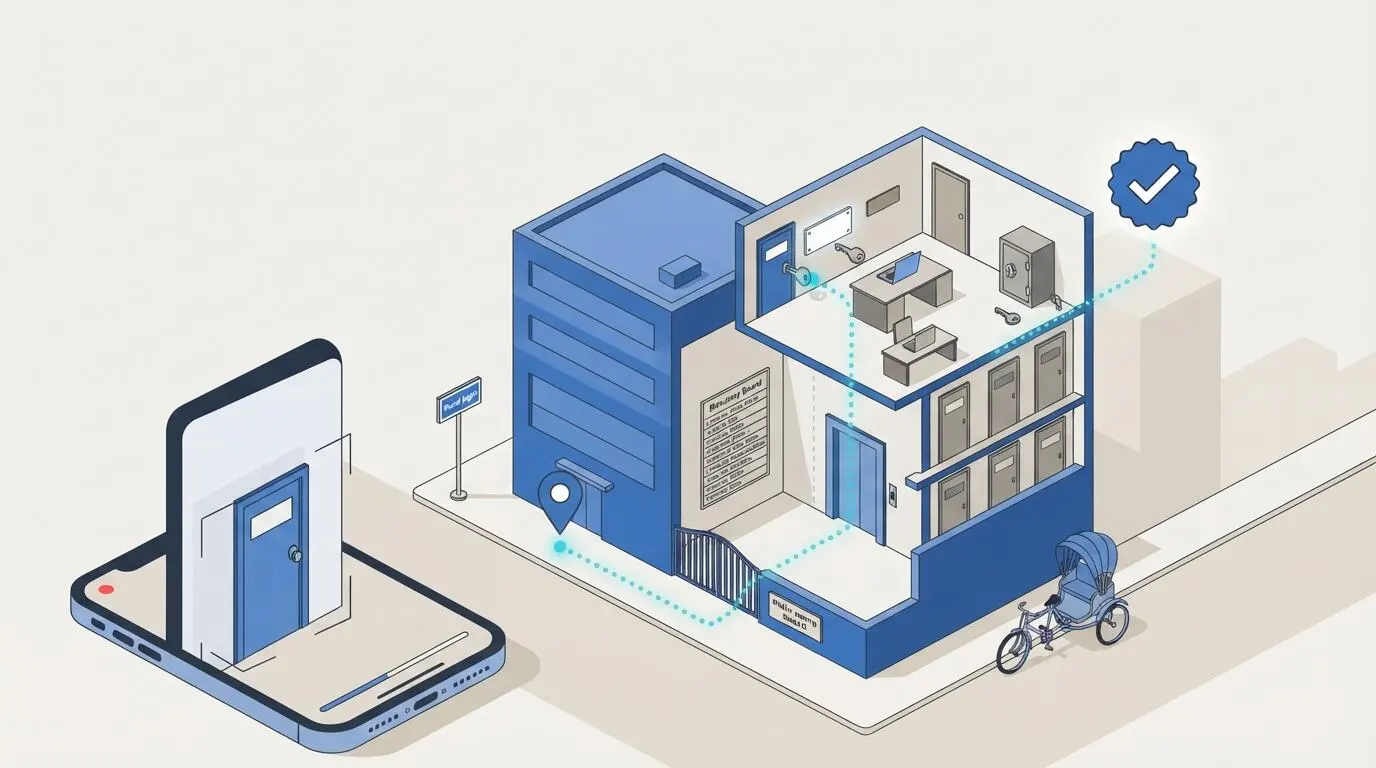
This is the order that tells Google a clear story, from the street to your desk. Move slowly, keep the phone steady, and hold each key shot for a few seconds.
| Shot | What to show |
| 1. Street | A road sign, the building number or a well-known nearby place. Pan slowly so Google can match it to the map. |
| 2. Building gate | The building name on the gate or the front wall. |
| 3. Directory board | Your company name and floor on the building's board. Hold steady so the text is readable. |
| 4. Lift or stairs | Show yourself going up to your floor. Show the floor number when the lift opens. |
| 5. Office door | Your permanent sign, close and clear. The name must match your profile. |
| 6. Unlock the door | Use your key or access card. This proves you have access. |
| 7. Inside | Reception, desks, equipment and branded items like a logo wall or branded files. |
| 8. Proof of management | Open a locked cabinet, log into your business software, or show a document with your business name. |
If your lift has no floor display, film the stairwell floor sign instead. Keep the camera running the whole time. A break of any kind means you start again.
Filming Route for Service-Area Businesses
Some businesses run from an office but serve customers at their homes or sites. Examples include IT support, pest control and interior teams. Their video follows a shorter route.
- Signs and landmarks near your address. Film street signs or well-known places around your base. If you run the business from home, Google lets you film landmarks and signs in your immediate neighbourhood.
- Your tools or vehicle. Show the equipment you use for work, like tool kits, machines or branded uniforms.
- Unlock a branded van or open your equipment. This shows you control the business assets. You can also film yourself performing a service.
- An invoice or utility bill with your business name. Google accepts documents like a permit, invoice or utility bill. The name on it must match your profile.
Avoid filming empty land or spots with no clear markers. Google cannot confirm a location from that.
How to Record and Upload Your Video
Here is how to verify Google Business Profile with a video, step by step. You cannot record the clip in your normal camera app and upload it later.
Google needs it captured live inside your Business Profile.
- Open your profile on your phone. Search "my business" on Google or open business.google.com while signed in.
- Tap "Get verified." Google may ask you to enter a phone number first.
- Choose "Business video." Tap "Next" and read the requirements on screen.
- Allow camera and location access. Google may also ask for microphone access.
- Record. Tap "Next," then "Start recording," and follow your shot list. Tap the stop button when you finish.
- Watch it back. Check that every sign is readable. Tap "Try again" if anything is missing.
- Upload. Tap "Upload video."
- If the upload fails, try again. Google says some videos fail on the first try and simply need a second upload.
What Not to Show
Google does not allow sensitive or private details in a verification video. A single visible ID number can undo a perfect take.
- Numbers on your business papers. Cover the numbers on your trade license, TIN, BIN, NID or bank papers.
- Faces of other people. Keep staff, guards and other tenants out of the frame.
- Private details. Skip personal papers, screens with customer data and anything private about you or others.
- Edits, cuts or added music. The video must be raw and continuous.
- A video you recorded earlier. Pre-recorded clips are not allowed.
In a busy building, film early in the morning or after office hours. Point the camera at signs and objects, not at people.
After You Upload
Once your video is in, Google reviews it. This takes up to 5 business days and, on rare occasions, a little longer.
| Result | What happens next |
| Verified | You get a confirmation email and full control of your profile |
| Not successful | Google lists the reasons, and you can record a new video |
Avoid editing your business name, address, or category while you wait. Google says changes to key details may require re-verification.
You can delete your verification video at any time. On your phone, open your profile, tap More, then Business Profile settings, then Advanced settings, and tap "Delete videos" under "Video uploads." If you do not delete it, Google deletes it later.
Video Rejected? Fix the Common Reasons
A video verification rejection notice is not the end. You will see a "Review issues" button on your profile with the exact reasons. Use this table to fix them.
| What Google says | What it means | How to fix it |
| "Business name not visible" | Google could not see your name on a permanent sign | Put up a clear, permanent sign that matches your profile name, then film it close |
| "No nearby area shown" | Google could not confirm your location | Start filming outside on the street with road signs or landmarks |
| "Missing proof of authorization" | Nothing showed that you run the business | Unlock something only staff can access, like a cabinet or your software |
When you film again, include everything from the first video plus what was missing. Do not just film the missing part.
If the "Get verified" button shows up on your profile again, Google could not fully verify your business. Try verifying again, or use another method if Google offers one.
When Video Isn't Offered or Keeps Failing
Google picks your verification options automatically, and you cannot change them. They depend on your business type, region, public info and hours. In some cases, Google asks you to verify with more than one method.
- Try any other method it offers you. You may see phone, text, email, live video call or postcard. A live video call only works during your business hours.
- Contact support. Use the verification help option in your profile, or Google Business Profile support. Google says support can help more easily once you have tried the methods shown to you.
- Check for instant verification. Google sometimes verifies a profile instantly if you have already verified your website in Google Search Console.
- Do not create a new duplicate profile. Google allows only one profile per business. A duplicate makes things worse, not better.
If none of this works, a trusted SEO service provider in Bangladesh can review your profile setup and find what is blocking it.
Common Situations in Bangladesh
Some cases come up again and again during Google Business Profile verification in Bangladesh.
Here is how to handle each one.
My Office Is in a Coworking Space
Check Google's eligibility guidelines before you start. Google only allows a coworking office if it has clear signage, receives customers during business hours, and has your own staff there during those hours. A rented mailing address or virtual office is not eligible at all.
My Office Is in a Residential Flat
Decide whether you are a storefront or a service-area business. If customers visit your flat during set hours and you have a permanent sign, storefront can work. If they do not visit, choose service-area and hide your address from the profile.
My Signboard Is Only in Bangla
Your profile name must match what is on your sign. You can use the Bangla name in your profile, or add an English version to your sign. Do not put both scripts together in the profile name, as Google does not allow repeated bilingual names.
We Just Moved and Have No Sign Yet
Put up a permanent sign first. Then update your address and pin, and record your video. Without a sign, your video cannot show proof that your business exists.
I Only Sell on Facebook
You are not eligible unless you offer in-person service. Google says online-only businesses cannot get a Business Profile or be verified. If customers can visit you, or you deliver or serve them in person, you may qualify.
Our Agency Is Verifying for a Client
Google says a third party, like an agency, can be added to the profile after verification. So the safest setup is simple. The business keeps the profile on its own Google account and adds the agency as a manager later.
The person filming must be signed in to the profile on their phone, be at the office, and have access to staff-only areas. That is why the owner or a staff member usually holds the phone while the agency guides them.
How to Stay Verified
Getting verified is step one. Staying verified means not giving Google a reason to check you again.
- Think before you edit key details. Changing your name, address or category can trigger verification again.
- Keep keywords out of your business name. Google may suspend profiles with taglines, locations or service words added to the name.
- Keep your name, address and phone the same everywhere. Use the same details on your website, directories and social pages. Consistent local citations help Google trust your listing.
Once verified, focus on optimizing your Google Business Profile and getting more Google reviews the right way.
Both feed into the factors that decide your Google Maps ranking.
Final Thoughts
Office buildings make Google Business Profile verification in Bangladesh harder, but not impossible. Plan your route from the street to your desk. Put up a permanent sign that matches your profile name. Record one clean, live take that shows location, existence, and management. If you want help with local search after that, start with a solid local SEO plan.
Most Common FAQs on Google Business Profile Verification
How Long Does Video Verification Take?
Google reviews verification videos in up to 5 business days. On rare occasions, it can take a little longer. You get an email once your business is verified, or a "Review issues" notice if the video failed.
Can I Verify Without a Signboard?
A storefront business needs a permanent sign with its name at the address. Without one, your video is likely to fail with a reason like "Business name not visible." If customers do not visit you, a service-area profile lets you verify with tools, a vehicle or business documents instead.
Can I Upload a Video I Recorded Earlier?
No. Google only accepts video captured live inside your Business Profile on a mobile device. You cannot record it in your camera app or offline and upload it later.
Can a Facebook-Only Shop Get a Business Profile?
Not if it only sells online. Google says online-only businesses are not eligible. If you also meet customers in person, at a location or by delivery, you may qualify.
Which Documents Can I Show in the Video?
You can show a business document with your business name, such as an invoice, utility bill or business permit. Cover every sensitive number first, including trade license, TIN, BIN, NID and bank account numbers. The name on the document should match your profile name.
Do I Need to Show My Own Face?
No. Google does not ask you to show your face. It asks you to avoid other people's faces, so keep the camera on signs, rooms and equipment.
Why Is Google Asking Me to Verify Again?
Google may ask for re-verification after you change key details like your name, address or category. It wants to confirm the new information is correct. Follow the same steps shown in your profile.
Can Someone Else Record the Video for Me?
Yes, as long as they can access your profile on their phone and reach staff-only areas. The video must be recorded live through the Business Profile at your location. A trusted staff member or an agency person with profile access can do it.
Can I Change the Verification Method Google Gives Me?
No. Google decides the available methods automatically, and you cannot pick or change them. If video keeps failing, try any other option shown in your profile, then contact support.
Faisal Mustafa is an Online Market Specialist. He has been providing result oriented quality SEO services to clients worldwide successfully since 2008. He has hundreds of reviews and feedbacks on marketing forums. He is the admin of SEO viser team and a successful online marketer.
OUR SERVICES


Request a free quote
We offer professional SEO services that help websites increase their organic search score drastically in order to compete for the highest rankings even when it comes to highly competitive keywords.
More from our blog
See all posts